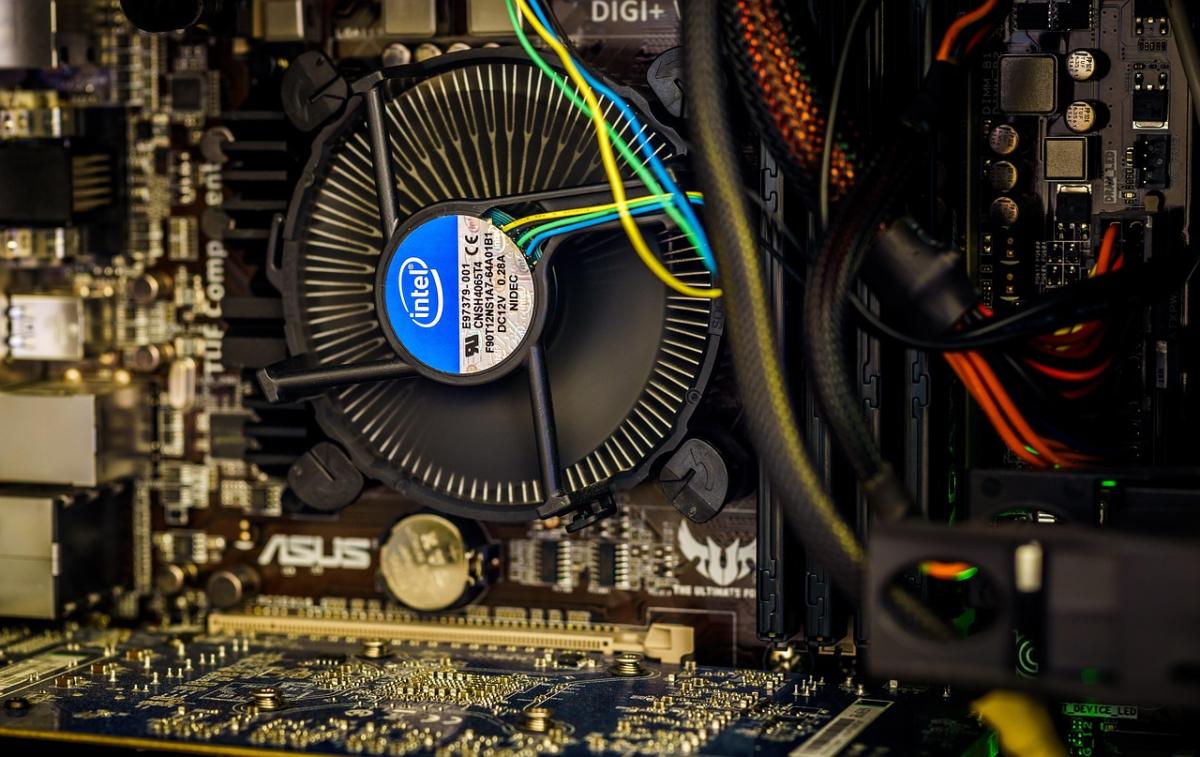
If your computer has been feeling a little sluggish lately, you’re not alone. Over time, files pile up, settings get messy, and things slow down. The good news? There’s a whole category of tools designed to help—system utilities. Whether you’ve heard of registry cleaners, system cleaners, or speed-up tools, this guide will help you understand what they do and how to use them safely.
What Are System Utilities, Anyway?
Think of system utilities as your computer’s housekeeping crew. They don’t replace your everyday apps like browsers or word processors. Instead, they tidy up behind the scenes:
-
Cleaning junk files that no longer serve a purpose
-
Managing startup programs that can delay boot times
-
Optimizing settings so your PC runs more efficiently
Popular Types of Tools
Let’s break down some of the common categories you’ll run into.
1. System Cleaners
These sweep away temporary files, old logs, and other digital clutter. It’s like taking out the trash so your computer doesn’t have to sift through it every time you open a folder.
2. Registry Cleaners (Windows Only)
The Windows registry is a database of settings for your system and apps. Registry cleaners promise to fix broken entries, but tread carefully: cleaning the registry isn’t always necessary and can occasionally cause more harm than good.
3. Speed-Up and Optimization Tools
These apps help you disable unneeded startup programs, tweak system settings, and free up RAM. They won’t turn a ten-year-old laptop into a gaming rig, but they can make day-to-day use snappier.
Tips for Choosing the Right Software
With so many options out there, here are a few tips to stay on track:
-
Look for reputable developers. Stick to well-known names and read recent user reviews.
-
Avoid “too good to be true” claims. A tool that promises to “double your speed instantly” is probably exaggerating.
-
Check for automatic backups. If the program changes critical settings, it should give you an easy way to undo them.
-
Free vs. Paid. Free tools can work well for basic cleaning, while paid versions may include extra features like real-time monitoring.
Safety First
Before you click “clean,” back up important files. Even reliable software can occasionally remove something you need. And remember: no utility is a substitute for regular maintenance—keep your operating system updated and uninstall programs you don’t use.
Wrapping It Up
System utility software can be a real lifesaver when your computer starts to feel bogged down. Start small with a trusted cleaner or an optimization tool, keep backups handy, and you’ll have a faster, smoother-running machine without the frustration.

IOLO System Mechanic Ultimate Defense
Product information
$79.61
Product Review Score
4.53 out of 5 stars
196 reviews